BACKGROUND
The SAP Advance Tax Return report (“t” code RFUMSV00) is the standard extract for VAT. It is a “variant report”, which means that for each implementation customers choose at the outset which columns to include. It is generally just enough to do a VAT return but not enough for a good audit.
It is an old report structure that was not designed with modern compliance in mind and is a sort of report laid out in excel rather than a more useful transaction list with fixed column headers. So it needs special set up to “flatten” the report into a transaction list.
Specific features are needed to deal with this report. For the following reasons:
There is usually a section at the beginning of the report that shows the selections made when the user ran the report (date range, taxable country, selected country code etc).
There are sections for sales and purchases.
The column headers for sales have slight name differences to the the ones for purchases.
Sometimes the columns shift from sales to purchases and the same column headers are not in the same column between the two.
There are additional summary sections that need to be ignored on upload.
The taxable country of the customer is sometimes in the meta-data at the beginning of the file and not provided as a column.
The number and date formats are often not recognised by an algorithm (excel or our mapping tools).
REPORT STRUCTURE
There are two main sections that we use that contain the invoice lines:
Output VAT. This section has all the sales transactions and contains blocks of records (presumably designed originally with printing in mind) where each one starts with the text literal “Output Tax: Line Items“. The main document type for sales is:
MWS (although there can be others) and these transactions are signed according to accounting principles rather than invoice principles (with a -ve value for invoices and a +ve value for credits).
Input VAT. This section has all the purchase transactions. It comes after the Output VAT section and contains blocks of records where each one starts with the text literal “Input Tax: Line Items”. The lines are signed according to normal principles (+ve for invoice and -ve for credit). There are three main document types for purchases:
VST, these are domestic purchases
ESE and ESA. These are reverse charges. An ESE is the deductible VAT and ESA is the reversing entry. VATCalc reversed tax codes automatically create the corresponding offset so we only need the ESE document types. We can skip or disregard the the ESA ones in the mapping (skipping is preferred since we do not end up with lots of disregarded transactions loaded and visible in Auditor and the ledgers).
There are addition sections for as summary of the output tax lines and a summary of the input tax lines and at the end a summary by tax codes (which is useful when reconciling the data with what is in Filer using in the “Reconciliation view by tax code”). These sections all need to be ignored for upload.
Sometimes there are documents to handle differences in the documents.
RFUMSV00 MAPPING IN VATCalc
Mapping properties:
Set “Date doesn't contain a header with column names” to checked.
This tells the mapper to use the cell references (A, B , C, D, E…) instead of the column names. This is needed because the columns are not fixed across the file.
Logic in line mapping properties
preProcessLine logic to:
Create persistField "Direction" sections for Output and Input based on column B (or whatever column contains it) " Output Tax: Line Items" or " Input Tax: Line Items". These are like variables you can reference in the cell selection logic.
Cel selection logic for each attribute that is in different columns to set the column based on the getField "Direction" variables.
Set the reporting country from the meta data to a “fictitious” column that can be referenced later. (persistField "ReportingCountry")
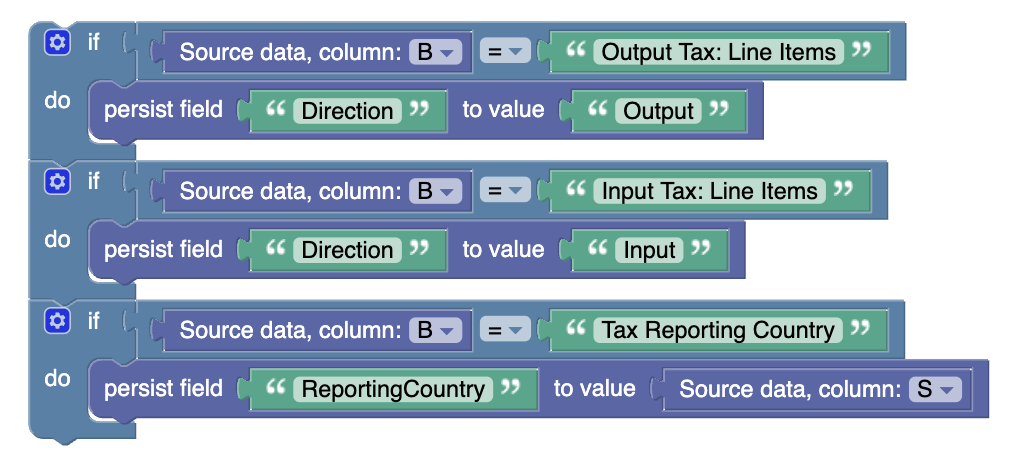

Logic in skipLine to:
Ignore lines where a given cell is empty


Note, logic could be added here to ignore ESA transactions and not load them.
Logic in each field mapping to use the “Direction” persisted field to help define which section the process is in and allow the correct column reference to be used for those that change depending on the section.

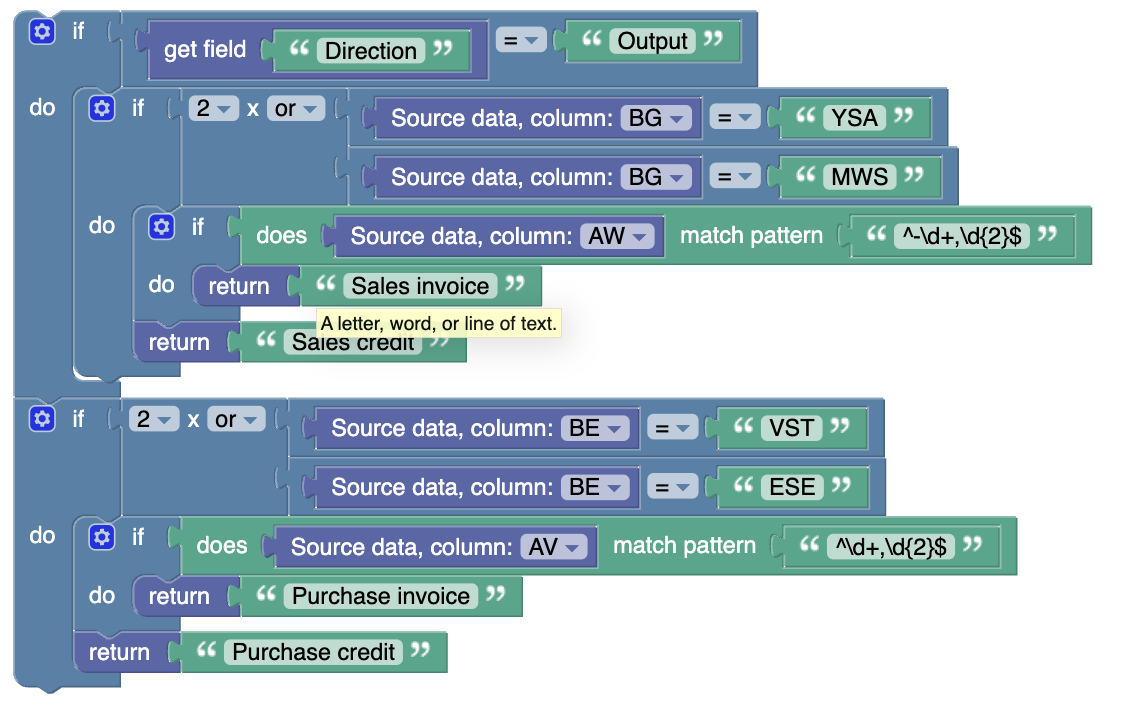
In this above example the direction is used so that the mapping knows which column to look for the docType in.
This example, also uses the “match pattern” function to identify the sign of the very strangely formatted numbers. The expressions are regex and ChatGPT is very helpful in defining these.
Was this article helpful?
That’s Great!
Thank you for your feedback
Sorry! We couldn't be helpful
Thank you for your feedback
Feedback sent
We appreciate your effort and will try to fix the article