The Transaction list gives you a complete view of all transactions that have been uploaded into Tax Agile. From here you can search and filter transactions, view their full details, check which returns they have been reported in, and open them directly in the Advisor.
Step 1: Navigate to the Transaction List
From the home screen, click on Data Manager in the top navigation bar, then select Transaction list from the dropdown menu.
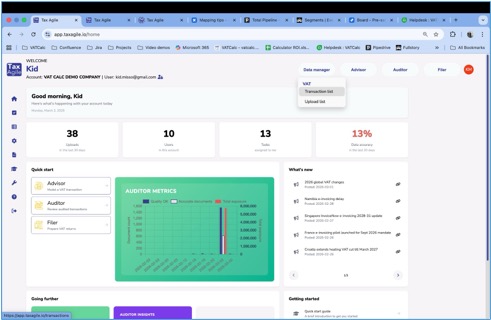
Fig 1: Select "Transaction list" from the Data Manager menu.
Step 2: Browse the Transaction List
The Transaction list displays all uploaded transactions in a table. Each row shows the key fields for a transaction including the document number, document type, document date, seller, buyer, country, VAT code, currency, base amount, VAT amount, and total amount.
At the end of each row there are action buttons for that transaction. You can also filter the list by document number or document date using the filter bar at the top, then clicking Filter. Click Reset to clear the filters.
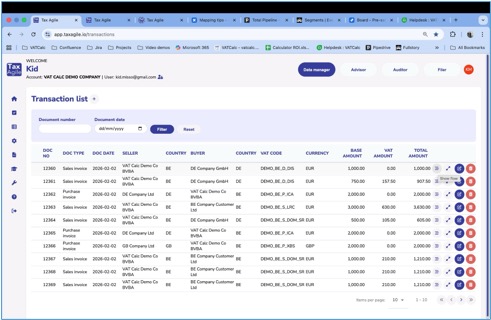
Fig 2: The Transaction list showing all uploaded transactions with key fields and action buttons.
Step 3: Filter Transactions
To find a specific transaction, type a document number into the Document number field and/or select a date in the Document date field, then click Filter. The list will update to show only matching transactions. Click Reset to return to the full list.
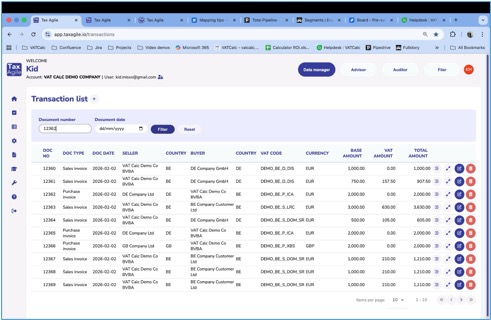
Fig 3: Entering a document number in the filter bar to search for a specific transaction.
Step 4: View the Document Flow
Each transaction row has a lines icon (the first action button on the right). Clicking this opens the Document flow dialog, which shows:
- VAT Return – The VAT returns this transaction has been reported in, including the filing name, the box it was reported in, the period, and the amount.
- Other filings – Any other filings such as customer listings or document ledgers that include this transaction.
- Errors – Any data quality issues identified for this transaction, such as missing required fields.
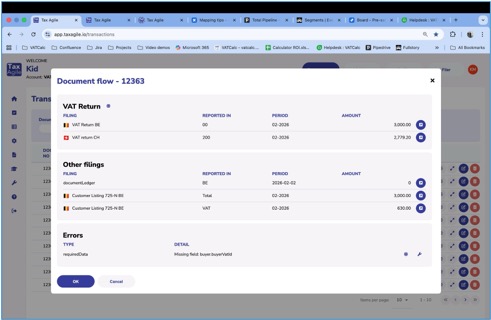
Fig 4: The Document flow dialog showing VAT returns, other filings, and any errors for a transaction.
Step 5: View Full Transaction Details
Click the arrow/expand icon (the second action button) on any row to open the full Transaction details panel. This shows a complete breakdown of the transaction including:
- Document type, document number, and all relevant dates.
- Supplier and customer information including name, address, country, and VAT ID.
- Auditor insights – Any tax code discrepancies flagged by the Auditor.
- Filer Insights – Reporting and mapping information used when generating returns.
- Metadata – The upload name, source, upload timestamp, Upload ID, and mapping name.
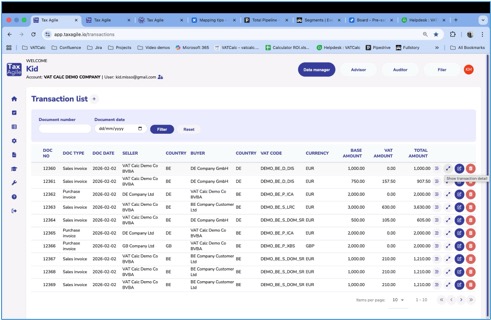
Fig 5: Hovering over the expand icon reveals the "Show transaction detail" tooltip.
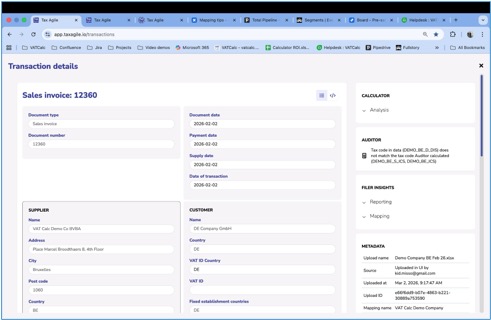
Fig 6: The Transaction details panel showing the full breakdown of a transaction including Auditor and Filer insights.
Step 6: Open a Transaction in Advisor
To model or review the tax treatment of a transaction, click Advisor icon (the third action button) on any row. This opens the transaction directly in the Advisor, where all fields are pre-populated and you can explore the VAT calculation, generate documents, or query the transaction with support.
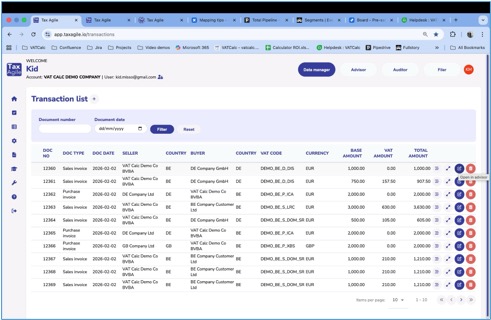
Fig 7: Hovering over the Advisor button reveals the "Open in advisor" tooltip.
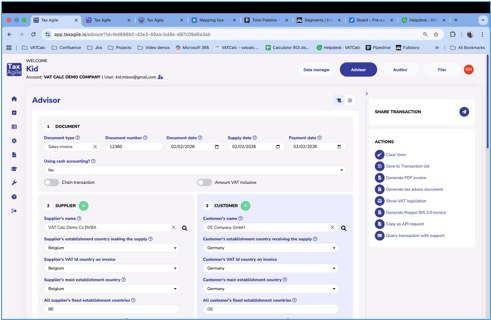
Fig 8: The transaction opened in the Advisor with all fields pre-populated and actions available on the right.
Need help? If you cannot find a transaction or have questions about the data shown, please contact our support team.
Was this article helpful?
That’s Great!
Thank you for your feedback
Sorry! We couldn't be helpful
Thank you for your feedback
Feedback sent
We appreciate your effort and will try to fix the article