The VAT Filer is where you can find, review, and manage all of your VAT returns and other filings. This article explains how to navigate to the Filer, find your returns using the list and calendar views, and open a return.
Step 1: Navigate to the VAT Filer
From the home screen, click on Filer in the top navigation bar. A dropdown menu will appear showing the available sections:
- Filings - list view – See all your returns in a sortable, filterable table.
- Filings - calendar – See your returns laid out by their filing deadlines in a calendar.
- Tax codes – Manage and review your tax code configuration.
- Check online VAT number validity – Verify VAT numbers against official registries.
- Manage MTD – Manage your Making Tax Digital connections for UK returns.
Select Filings - list view to get started.
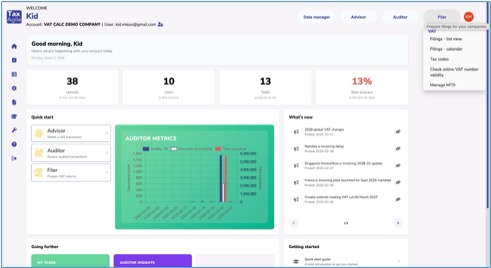
Fig 1: Click Filer in the top navigation to access the dropdown menu.
Step 2: Browse the Filings List
The Filings list – by month shows all returns across all companies for the current month, sorted by country. Each row shows the country, company, filing type, return name, period, deadline, preparer, reviewer, submitter, and status.
Use the < and > arrows to navigate between months. Each column header has a filter icon you can use to narrow down the list — for example, filtering by country or company to focus on a specific set of returns.
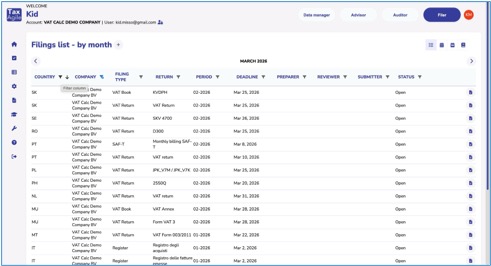
Fig 2: The Filings list showing all returns for the current month across all companies.
Step 3: Filter to Find Your Returns
To find returns for a specific company, click the filter icon on the Company column header and select the company you want. The list will update to show only that company's returns for the selected month. You can combine filters across multiple columns to narrow the results further.
Once you have found the return you are looking for, hover over the document icon at the end of the row to confirm it is the correct one — a "Show return" tooltip will appear. Click the icon to open the return.
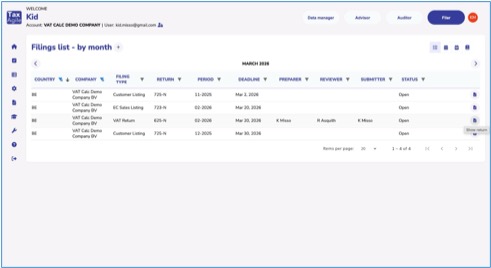
Fig 3: The list filtered to show returns for a single company, with the "Show return" tooltip visible.
Step 4: Open a Return
Clicking the document icon opens the return in the Filer. The return view shows the official form populated with your data, along with a status panel and actions on the right-hand side. From here you can:
- Review the calculated figures on the return form.
- Check the workflow status and see who is assigned as Preparer, Reviewer, and Submitter.
- Perform actions such as Manual adjustment, Add comment, Print return, Download return, and Check VAT numbers.
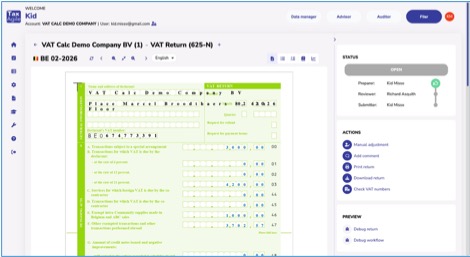
Fig 4: A VAT return open in the Filer, showing the populated form and the status and actions panel.
Step 5: Use the Calendar Views
As an alternative to the list view, you can view your filing deadlines in a calendar. Click the calendar icon in the top-right of the Filings page to switch views. There are two calendar options:
- Month view – Shows all filing deadlines across the entire month, with each return displayed on its deadline date. Use the Company dropdown to filter by company.
- Week view – Shows the same information focused on a single week, useful when you want to see exactly what is due in the coming days.
Click any return in the calendar to open it directly.
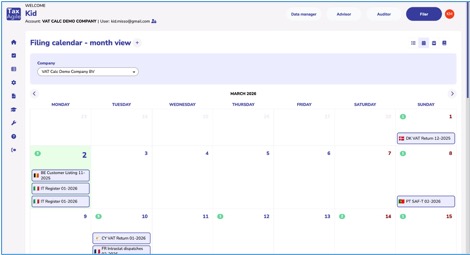
Fig 5: The Filing calendar in month view, showing returns plotted against their deadline dates.
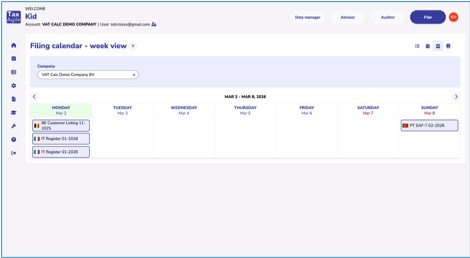
Fig 6: The Filing calendar in week view, giving a focused view of returns due in the current week.
Need help? If you cannot find an expected return or have questions about the filing status, please contact our support team.
Was this article helpful?
That’s Great!
Thank you for your feedback
Sorry! We couldn't be helpful
Thank you for your feedback
Feedback sent
We appreciate your effort and will try to fix the article